-
-
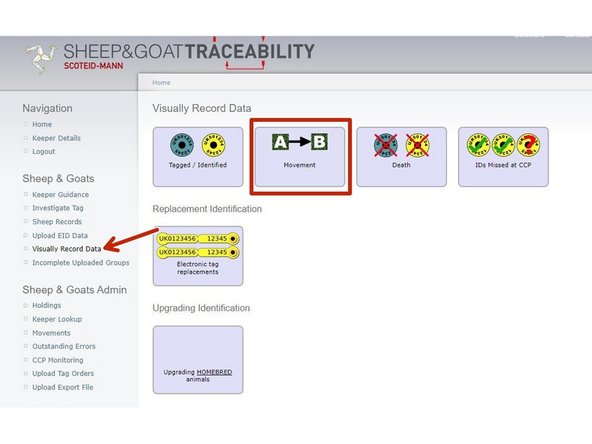
To record a private sheep movement. Once logged in, click on Visually Record Data under the sheep header.
-
Then click on the A to B movement
-
-
-
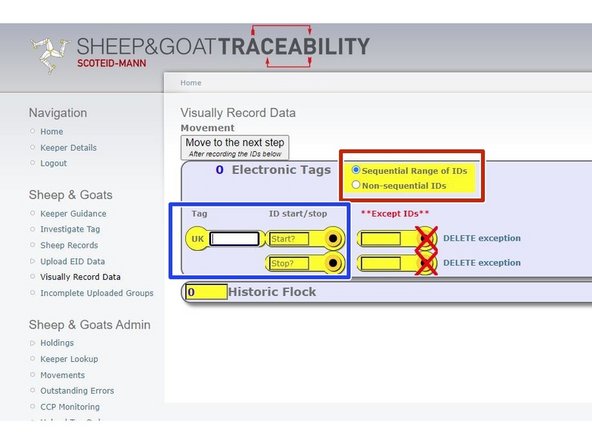
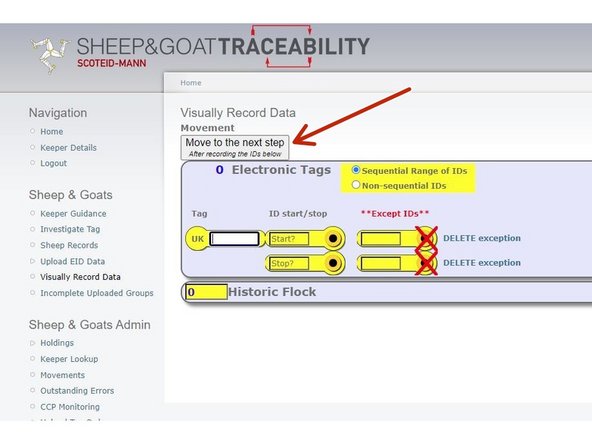
Firstly click on either sequential or non-sequential for Full EID tags.
-
If the numbers are in sequential order you need to add the flock number then the ID start and stop number range, if for example you are just missing one from this range due to a broken tag you can enter this number in the Except ID, there is no limit to how many exceptions you can add within a range.
-
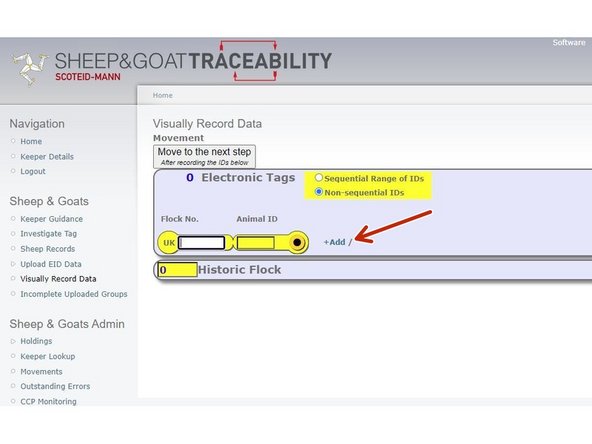
If the tags are in non-sequential order and may have different flock numbers then these can be added individually by clicking on the +Add button after each tag number.
-
-
-
After all the tag numbers have been entered, click on grey button, Move to the next step, located at the top left hand side of the page.
-
-
-
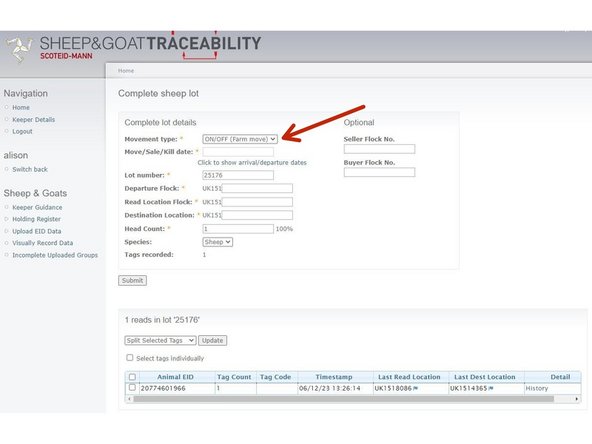
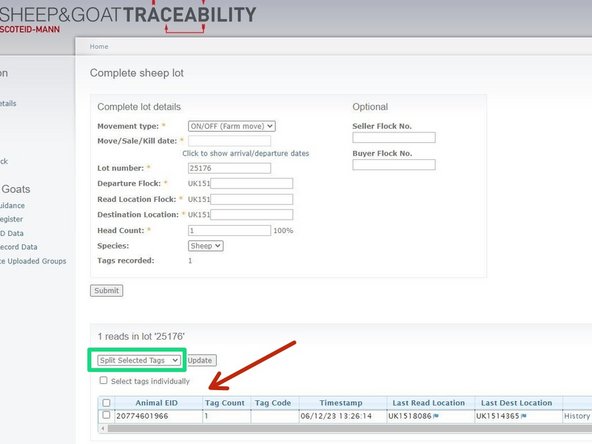
The movement type will automatically appear as an ON/OFF (Farm move), this can be changed by clicking on the drop down arrow.
-
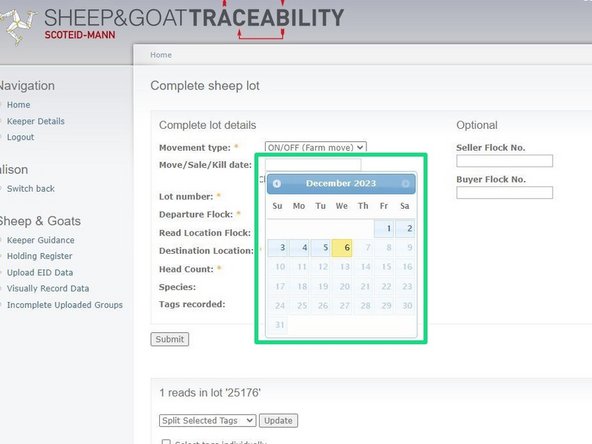
When you click on the date box, a calendar will appear for you to select the appropriate date.
-
You must enter a Lot number, you can change this or leave the one which automatically appears.
-
-
-
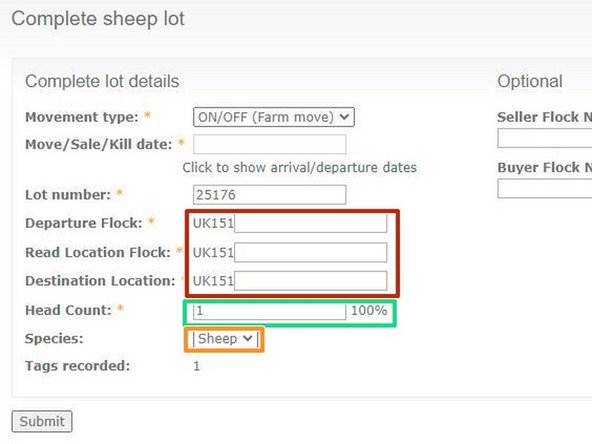
Departure, Read Location and Destination CPH's must all be entered (the read location can be the same as departure or destination).
-
The Head Count figure will be generated from tag information entered in the previous page.
-
Species can be changed from Sheep to Goats by clicking on the drop down arrow.
-
-
-
You can double check the tag information that was entered in the previous page if you scroll down below the submit button.
-
If any changes are required these can be made by clicking on the drop down arrow.
-
Once you are happy with all the data entered, click on the grey Submit button.
-
If you require further assistance, please contact ScotEID on 01466 794323.
If you require further assistance, please contact ScotEID on 01466 794323.